

PyQt Calculator: State Logic and Debugging
Table of Content
Challenge 1: Understanding and Implementing Calculator State Logic
Challenge 2: Tracing Bugs in Hidden Calculator State
Project Timeline: April 2025 ~ April 2025
Introduction
Project Context
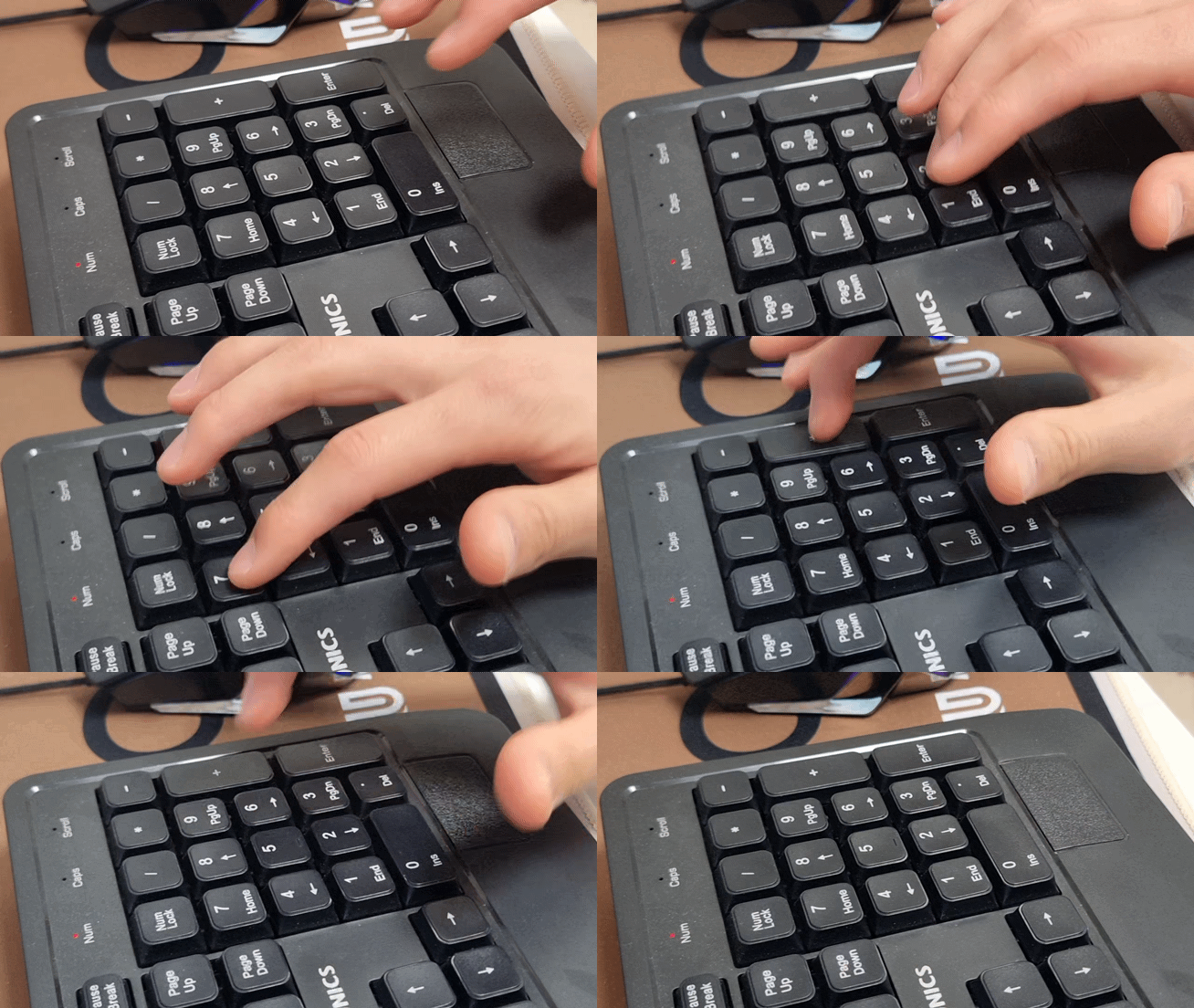
calculator GUI made with PyQT (left), User can operate the app using num pads (right)
This was a one-day solo mini project completed during a six-month ROS2 Robotics Software Development Bootcamp in South Korea. The project was part of an early GUI programming module using Python and PyQt.
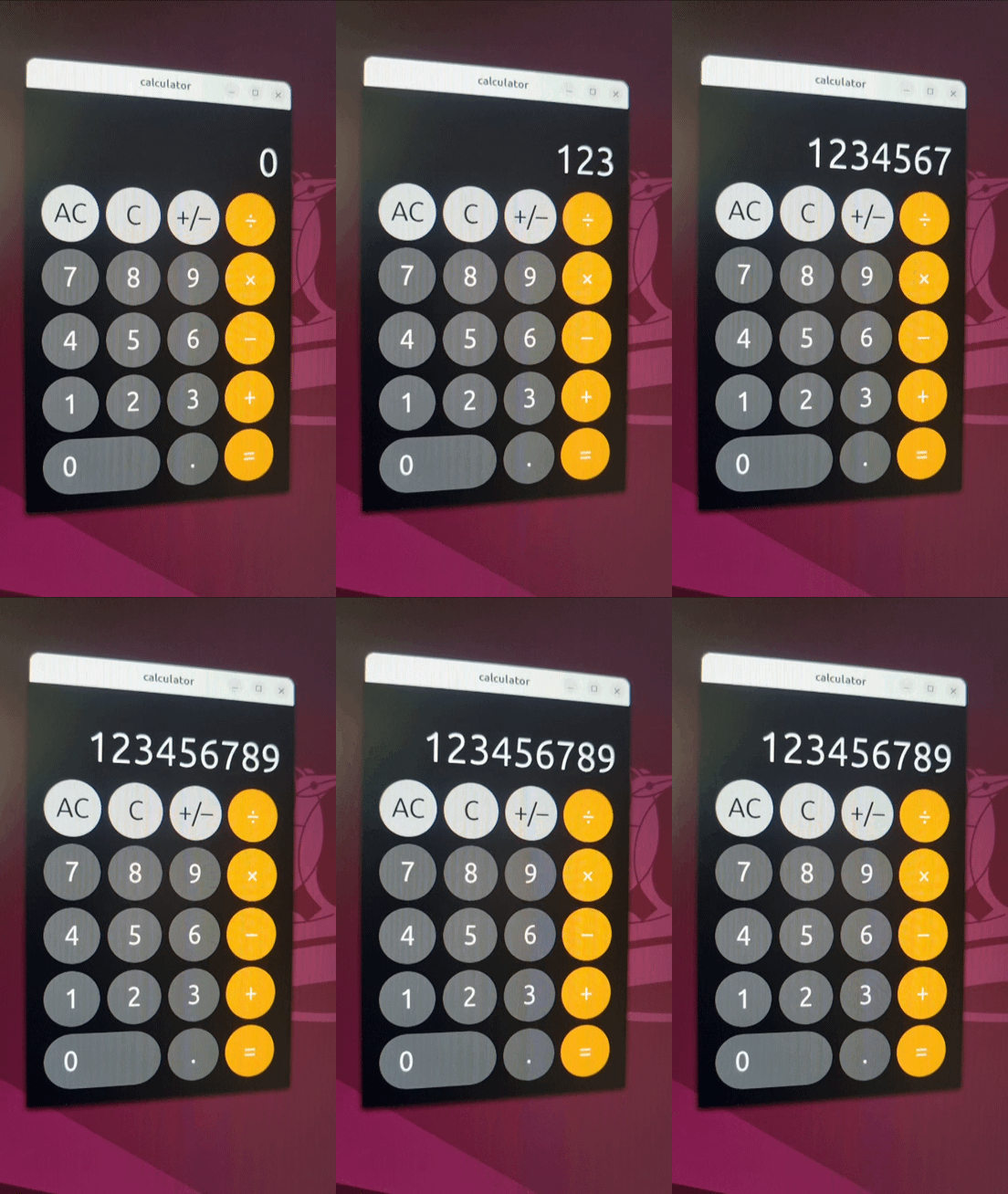
The goal was to build a functional calculator application with a clickable GUI. The project required connecting PyQt interface elements to the calculator logic so users could input numbers, perform basic operations, clear/reset values, and see calculated results on the display.


Project Goal
Challenge 1: Understanding and Implementing Calculator State Logic
The Real Problem Behind a Simple Interface
The calculator looked simple from the user’s perspective, but internally, each button press had to update the internal state correctly to make it functional. If the program did not clearly track the current number, selected operator, previous value, displayed value, and result after pressing equals, the calculator could quickly produce incorrect or unpredictable results.
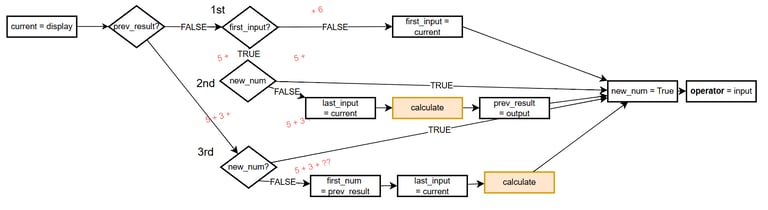
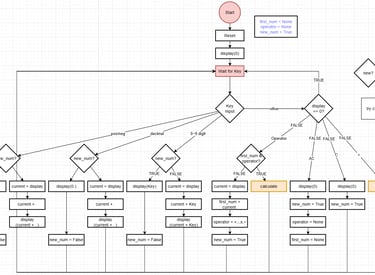
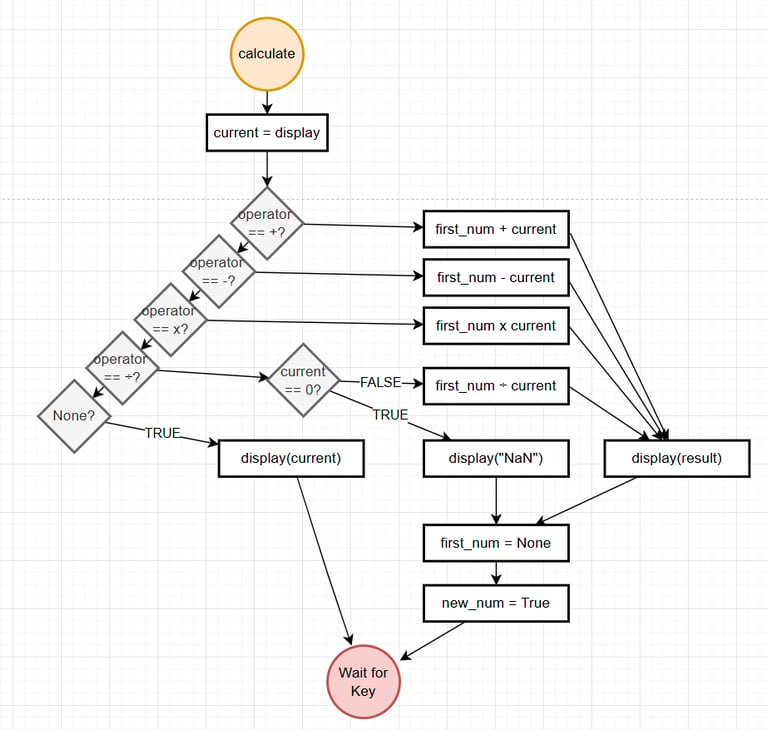
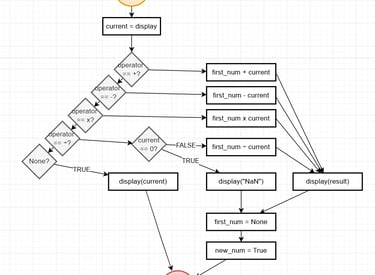
A few examples of the many failed logic sequences in a flow chart. Had to iterate more than a dozen versions to reach the final version
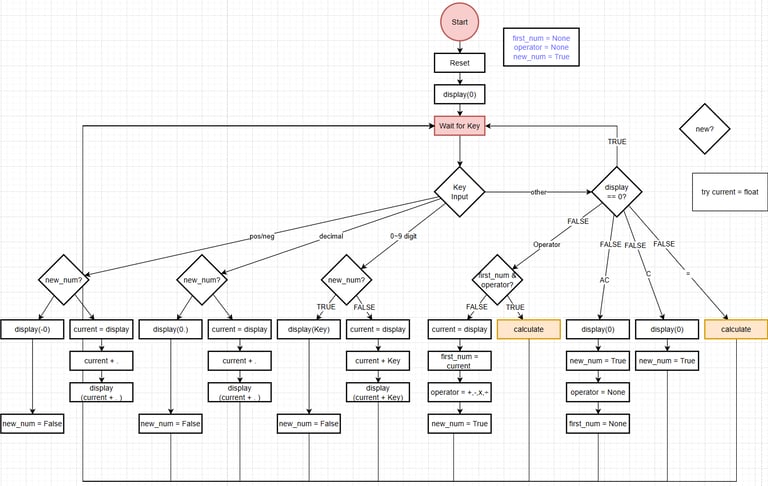
Researching the Logic Before Coding
Because I had not had a chance to closely examine how a calculator's logic works internally prior to this project, I first needed to understand its logic intuitively. Rather than spending time trying to guess the logic from scratch, I decided to first research the behaviour of established calculators and start from there. This gave me a clearer direction before writing the logic, without spending too much time reinventing the wheel.
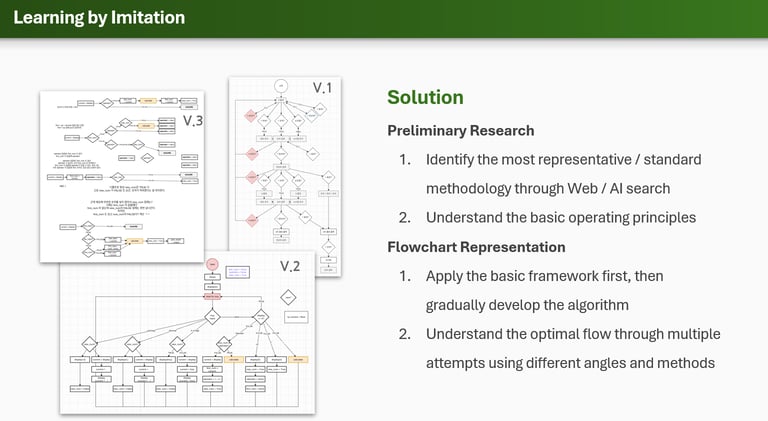
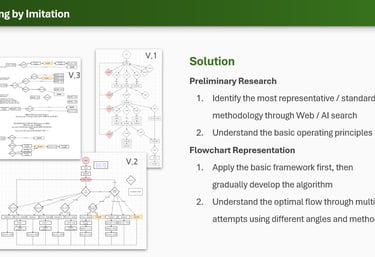
It was clear that reverse engineering a pre-existing system was the wisest approach when it comes to developing a system that is already well established
Prioritizing Core Functions Over Extra Features
Once I understood the calculator’s flow, I focused on ensuring the core functions behaved predictably before expanding to adding more features. The priority was to make basic operations, display updates, clear/reset behaviour, decimal input, and handling of invalid cases (such as division by zero) work reliably, rather than building a feature-heavy program with fragile logic.
Challenge / Problem Visual 3
Challenge 2: Tracing Bugs in Hidden Calculator State
The Limit of Output-Based Debugging
After the calculator logic started working, the next challenge was debugging errors that were not obvious from the display alone. An incorrect result could be caused by several internal factors, such as an incorrectly stored value, an incorrect operator selection, a reset condition, or a display update. Checking only the final output was an inefficient way to determine where the logic had failed.
Challenge / Problem Visual 1
Making Internal Values Visible
To solve this, I created a hidden developer-side debugging tool inside the program. It was not part of the user-facing calculator interface, yet it allowed me to inspect key internal values while testing different button sequences. This made the calculator’s hidden state easier to track during development.
Challenge / Problem Visual 2
Tracing Errors Using the Debugging Tool
Using the debugging tool, I observed how values changed after each input. I could trace whether the current number, previous value, operator, or display value had been stored or updated incorrectly. This sped up the process of pinpointing errors and troubleshooting the bugs during the debugging phase. Developing debugging tools while developing a system has become a habit of mine that has directly enhanced the quality of future projects.
Challenge / Problem Visual 3
Conclusion
Outcome
The final application successfully functioned as a PyQt-based calculator with a clickable GUI. The system handled basic arithmetic operations, display updates, clear/reset behaviour, decimal input, and simple edge cases such as division by zero.


The specification for the calculator's GUI Configuration. The overall design was inspired by the iPhone Calculator
Reflection
This project became an early foundation for later software and robotics development work. It showed that even simple GUI programs require clear internal logic, reliable state handling, and enough debugging visibility to verify behaviour step by step.
Extra Visual